
What is this page for?
When a caller asks for something the assistant does not handle itself, such as a callback, moving an appointment or a question about an invoice, the assistant records it as a note. Under Workflow > Notes you see all of those requests together, with the caller's details and a link to the call. You work through them by changing the status.
How it works
- 1Open Notes
Choose Workflow > Notes in the menu. At the top you filter by status (All, Open, Terugbellen, Afgehandeld or a custom status) and by request type. Use the search field to search by name, phone number or text.
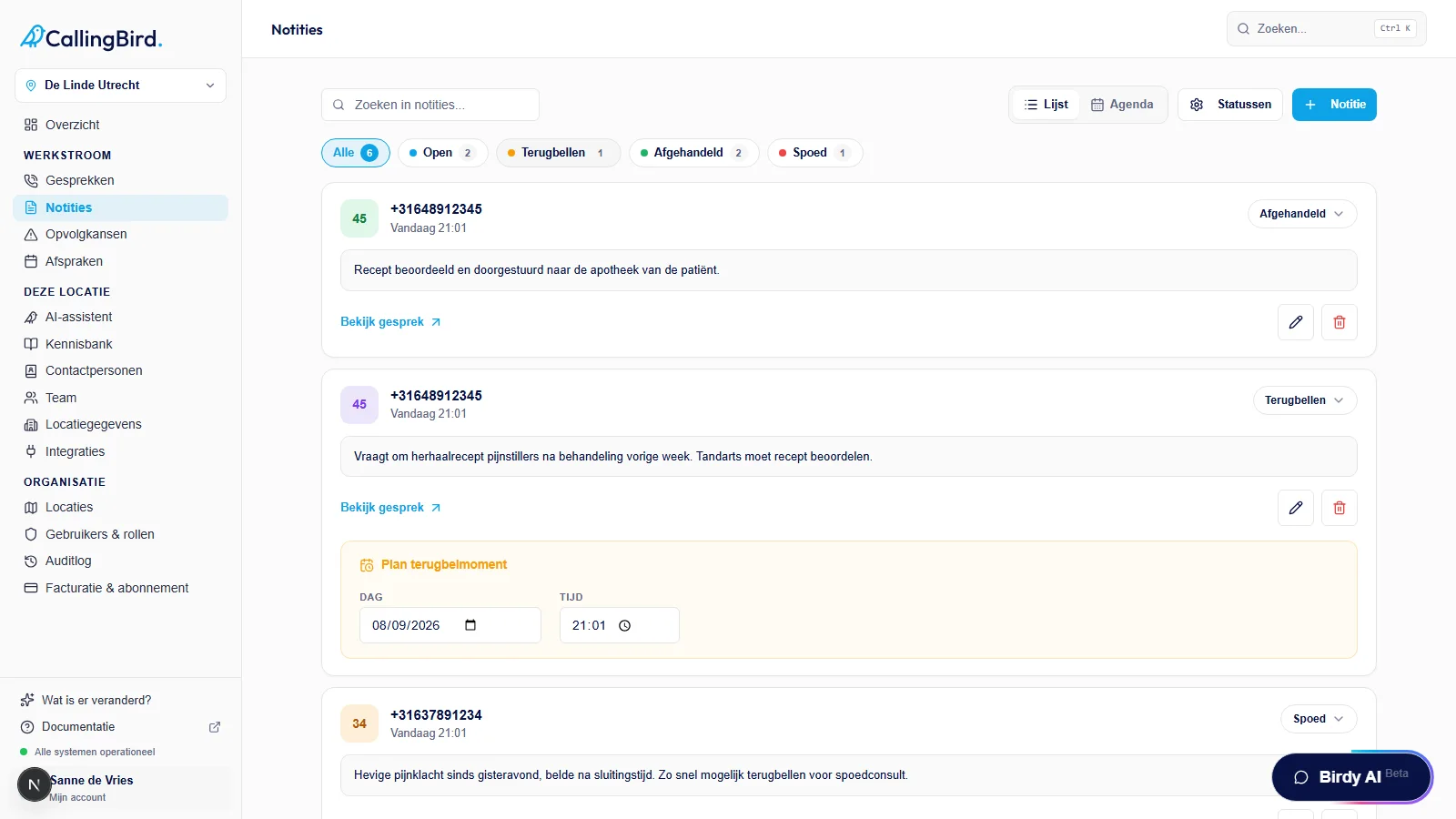
Filter by status or type, or search by name or number. - 2Review the note
Each note shows the caller, the time and what was asked. View call opens the related call and transcript.
- 3Change the status
Click the status badge on a note and choose the next status. If you choose Terugbellen, you pick a date and time straight away. You receive a reminder fifteen minutes beforehand.
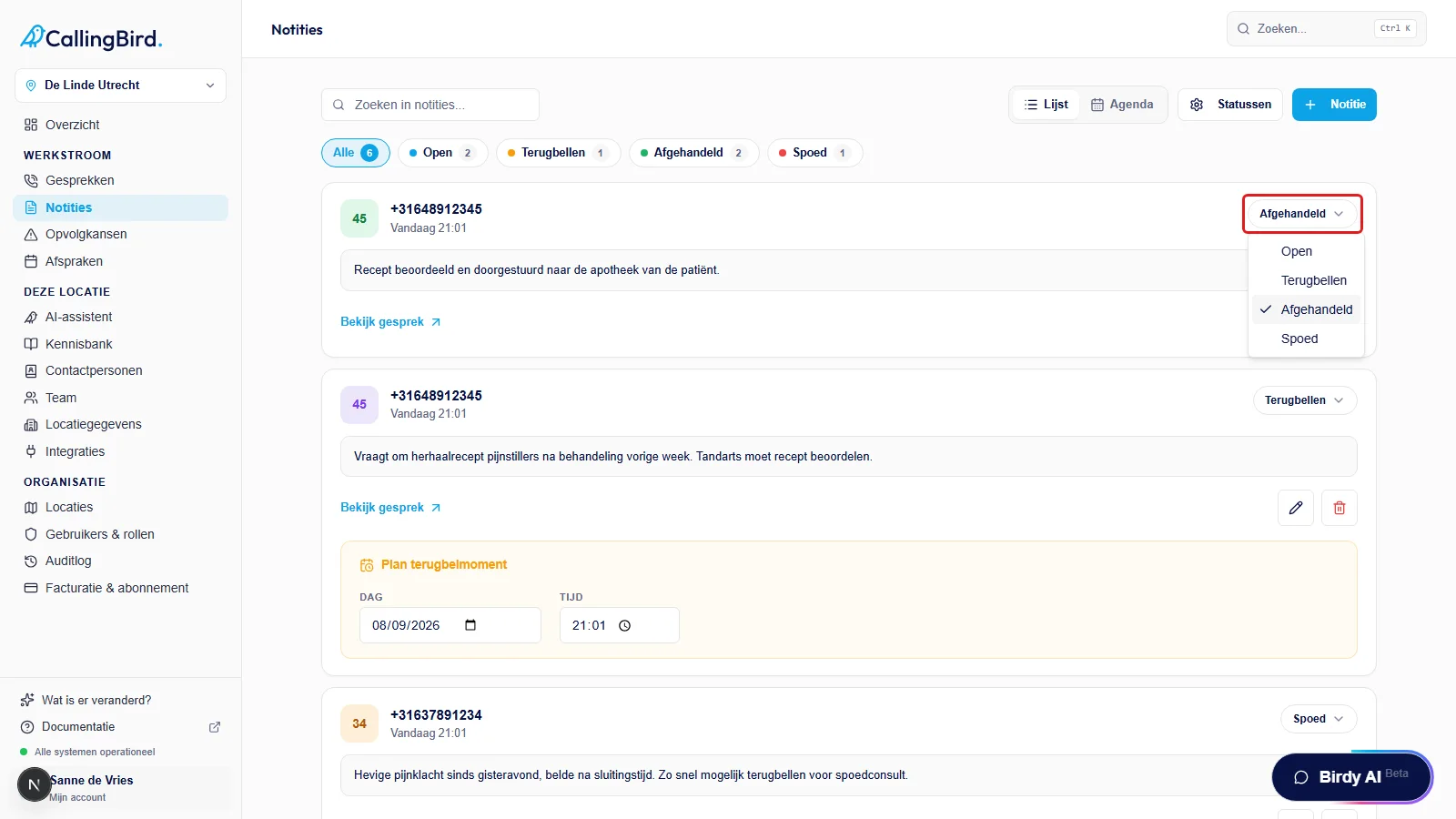
Use the status badge to set a note to Terugbellen or Afgehandeld. - 4See planned callbacks in the agenda
Switch from List to Agenda at the top right. You then see the planned callbacks per day, including the ones that are overdue.
- 5Add or edit a note yourself
Use Note to record a request yourself, for example after a call you answered in person. The pencil on a note lets you edit its details; the bin deletes it permanently.
Custom statuses
Besides Open, Terugbellen and Afgehandeld you can create your own statuses, for example Urgent or Registration. Open Statuses next to the filters, give the status a name and colour and choose how long notes with that status stay visible.
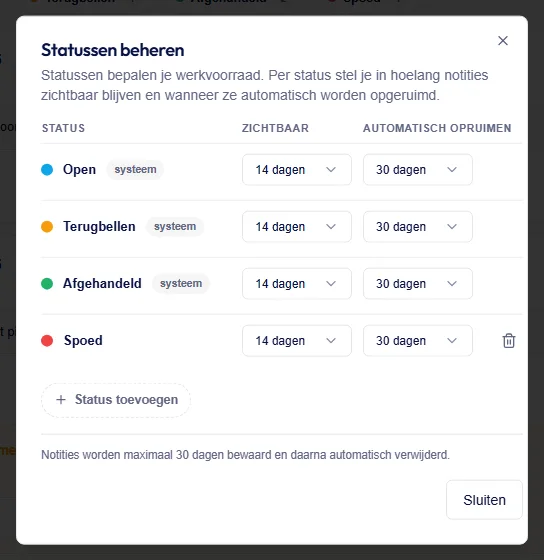
Good to know
- Which details the assistant asks for during a request is configured under AI assistant > Notes & callbacks.
- Notes stay visible for 14 days by default. You can shorten that per status.
- If you have several locations and the menu is set to All locations, you see the notes of all locations together, with the location shown on each note.