
What do you need?
You need administrator access to Flux and access to CallingBird. Collect two different values in Flux: the practice slug from Online appointments and an API token from Appointment widget.
Prepare Flux
- 1Open Online appointments in Flux
Click the gear icon in the left menu and choose Online appointments under Appointments. Flux describes this route as Settings > Appointments > Online appointments.
- 2Copy the practice slug
Find the base URL of your online appointments. The practice slug is only the part after the base URL; don't copy the full URL.
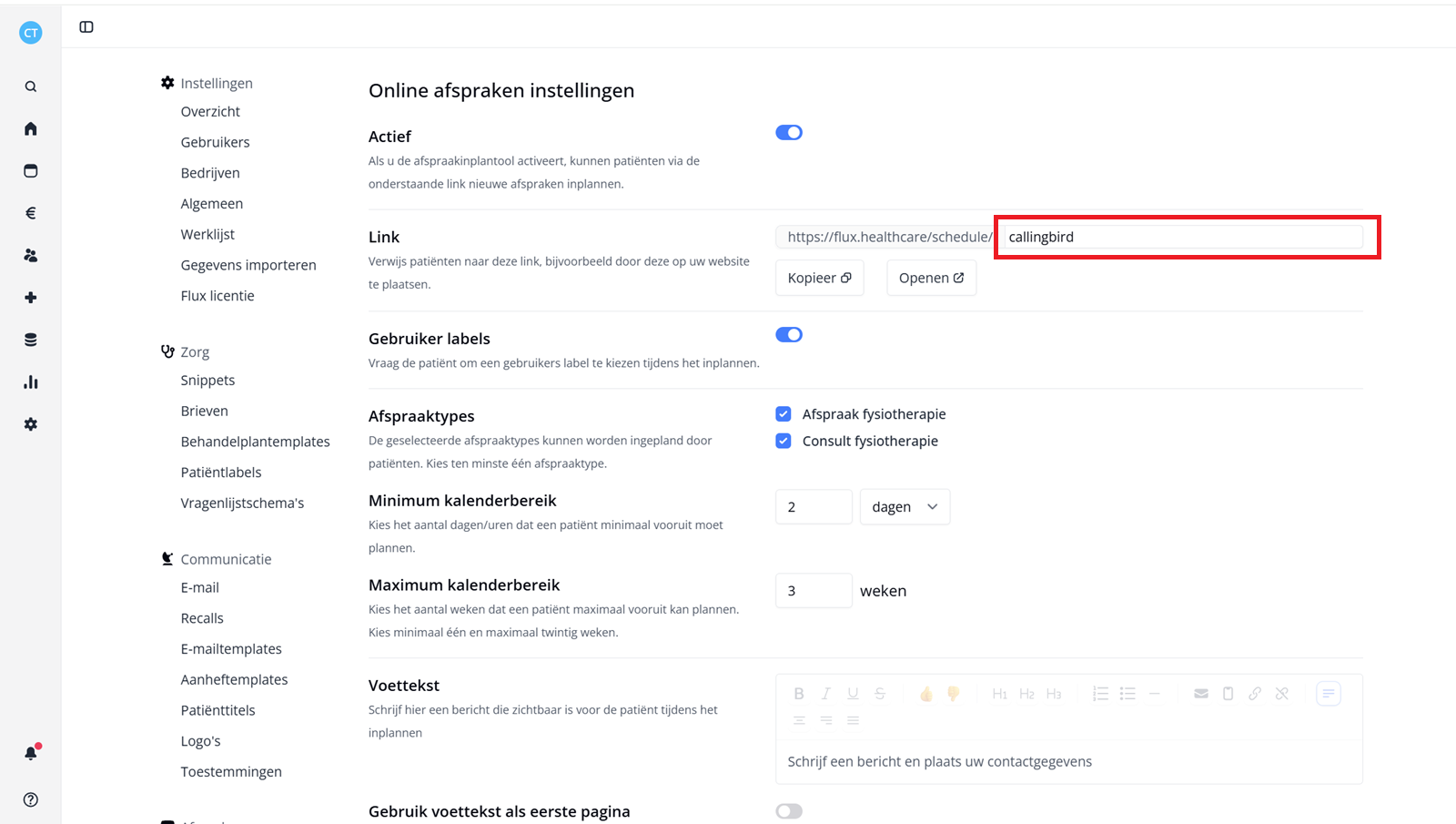
The part after the base URL is the practice slug you enter in CallingBird. - 3Open Appointment widget
Go back to Settings and open Appointment widget. This is where Flux manages the API tokens for the appointment widget.
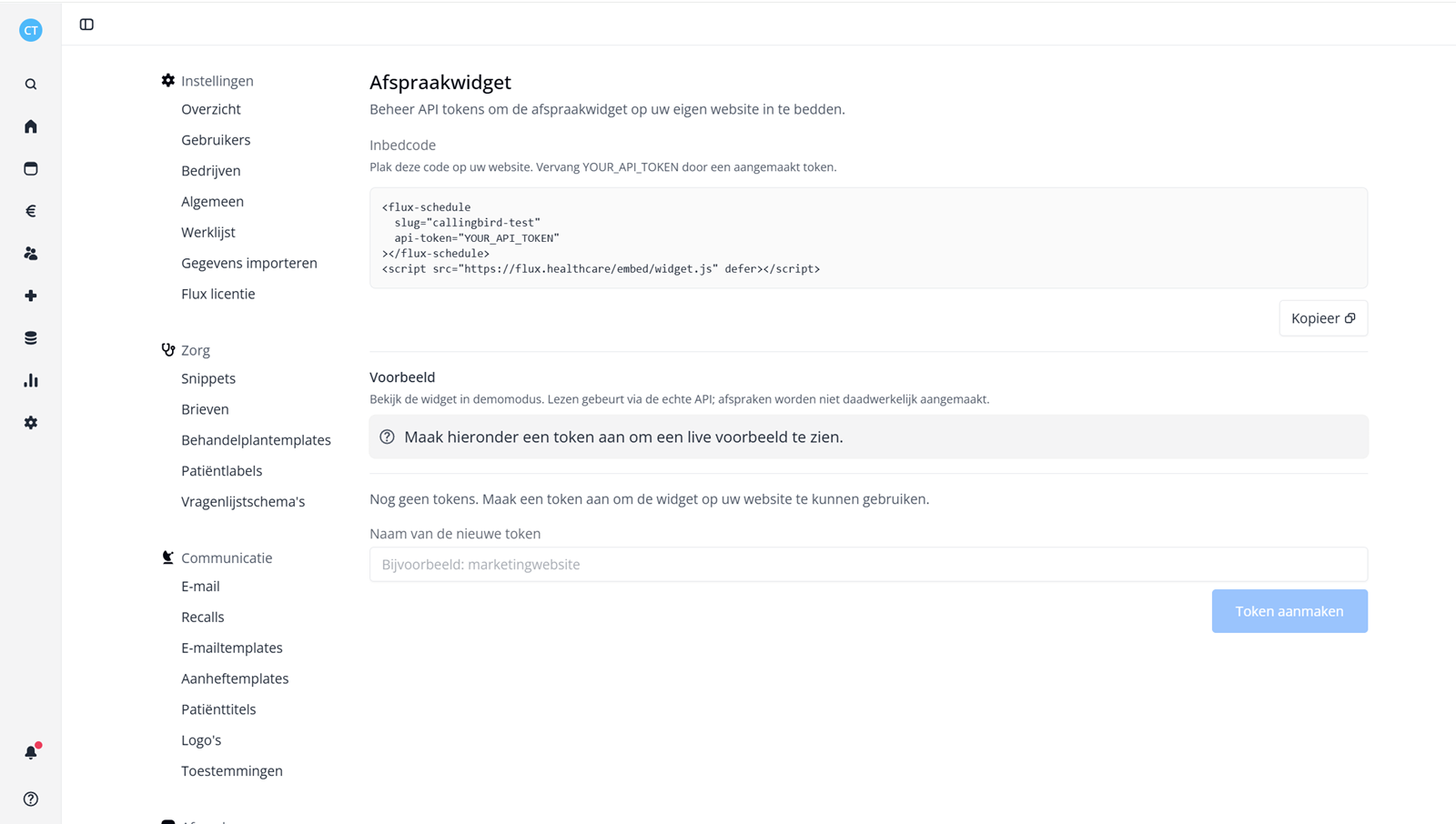
Appointment widget in the Flux settings. - 4Give the token a recognisable name
Enter a name such as CallingBird for New token name and click Create token.
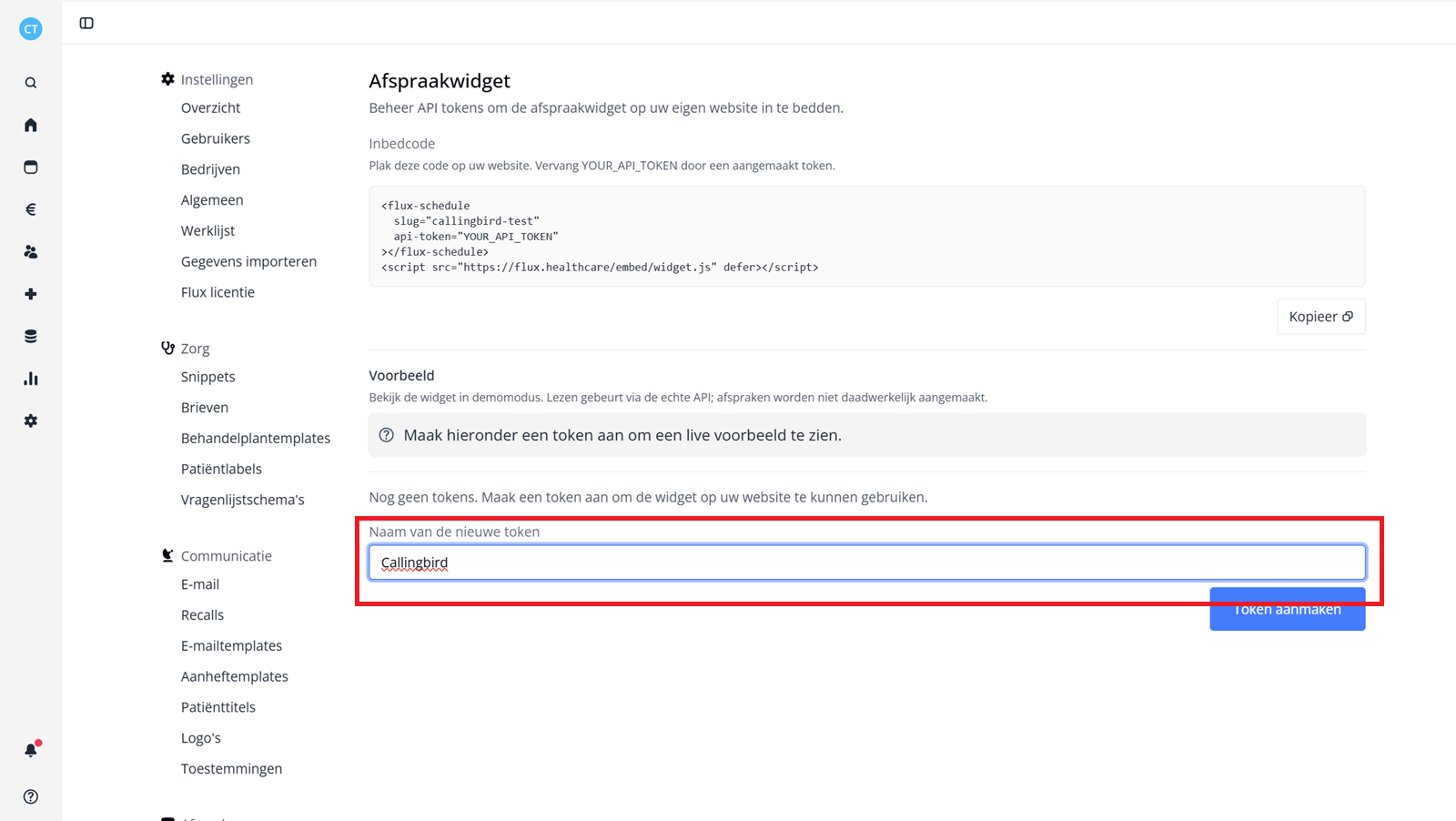
Use a recognisable name so you know later what this token is for. - 5Copy the API token
Copy the new token immediately after Flux shows it. You will enter this token as Flux API token in CallingBird.
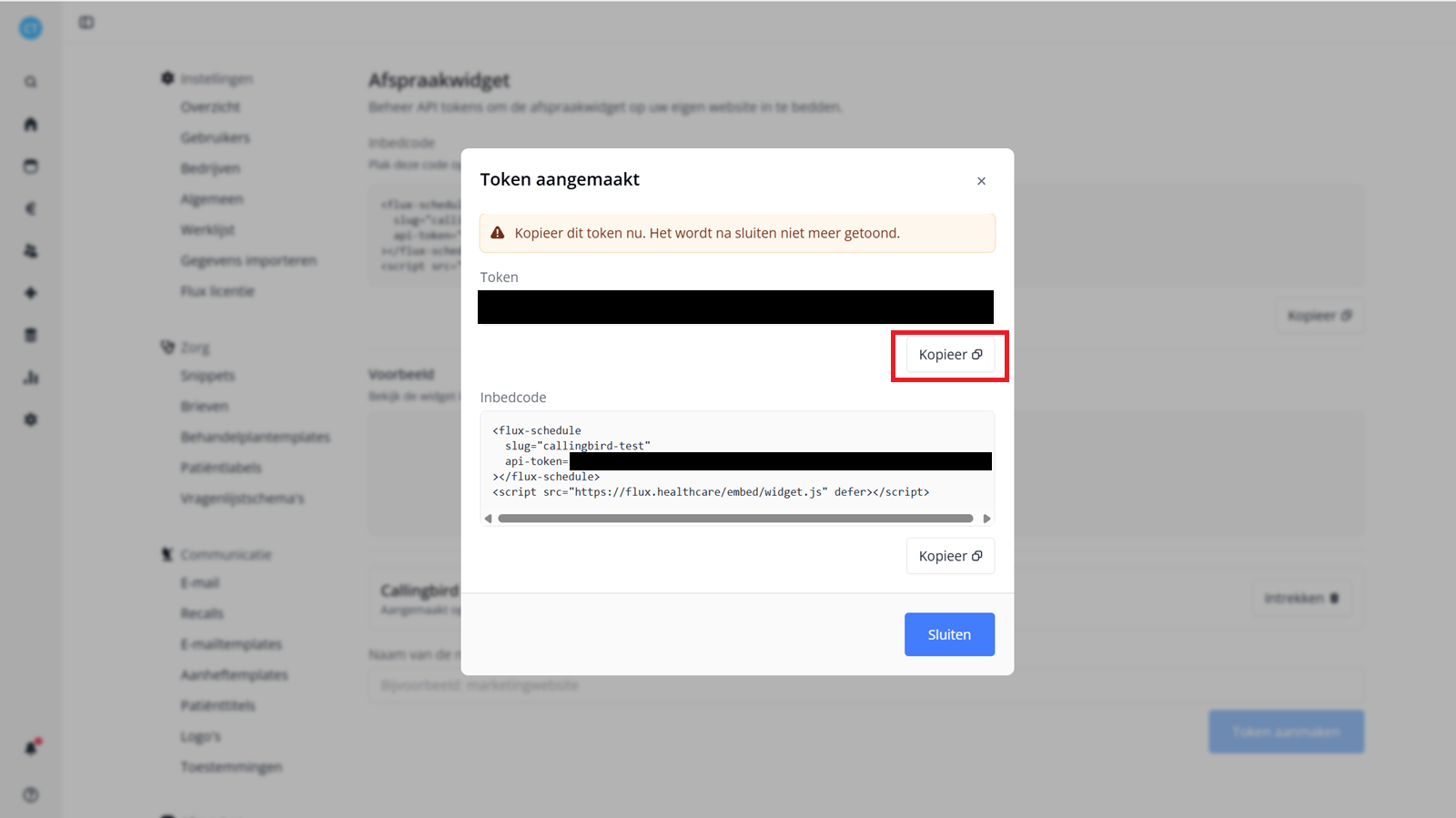
The new API token you'll paste into CallingBird.
Connect Flux in CallingBird
- 1Open Integrations
In CallingBird, go to Settings > Integrations and choose Connect on the Flux card.
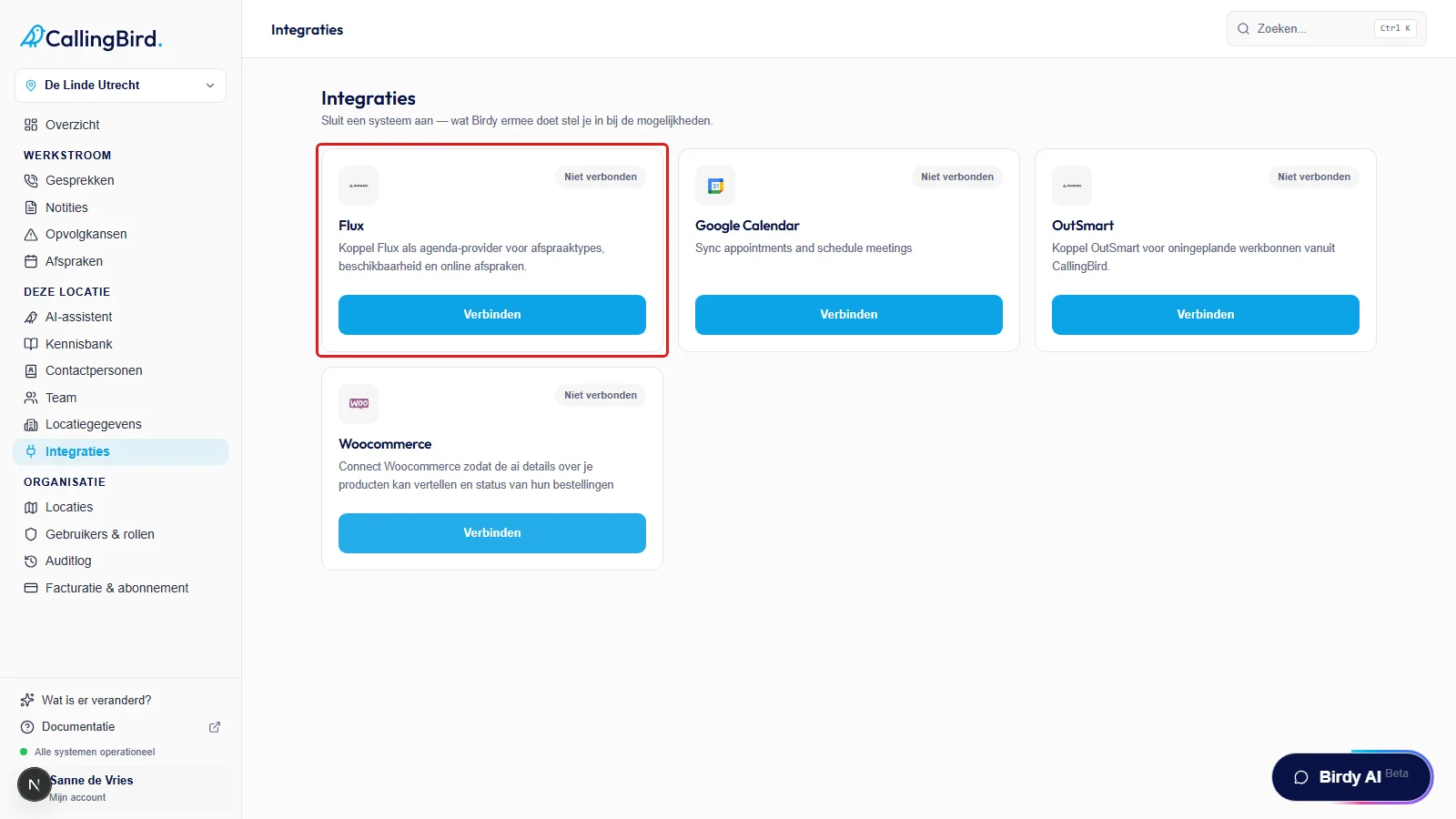
The Flux card with the Connect button. - 2Enter Practice slug
Paste only the value you found after the base URL in Flux into Practice slug.
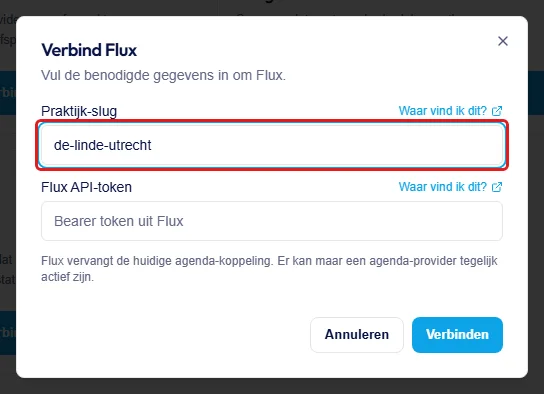
Paste only the part after the base URL here. - 3Enter Flux API token and connect
Paste the token from Flux into Flux API token and click Connect. CallingBird verifies the values before saving the connection.
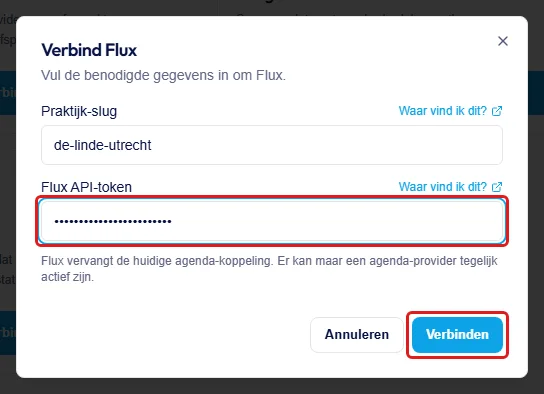
Paste the token you copied from Flux here. - 4Check that Flux is connected
After a successful connection, the Flux card under Integrations shows the Connected status. Use Manage later to change the scope or disconnect.
Manage Flux after connecting
After connecting, the assistant uses Flux as the calendar provider for appointments.
- 1View employees from Flux
Under Team you see the employees from Flux the assistant can schedule with; you change them in Flux itself.
- 2Manage appointment types
Under AI assistant > Book appointments you see the appointment types callers can book by phone, and turn on whether the assistant asks for gender.
- 3Only disconnect when needed
Use Manage on the Flux card under Integrations and choose Disconnect. After that the assistant can no longer schedule through Flux.