
What is this page for?
Under Settings > Contacts you manage the contacts your assistant recognises during a call. When the assistant recognises an incoming number, it addresses the caller by name. You search, add, edit or delete contacts, and import a whole list at once with a CSV file.
How it works
- 1Search for a contact
Use the search field to search by name.
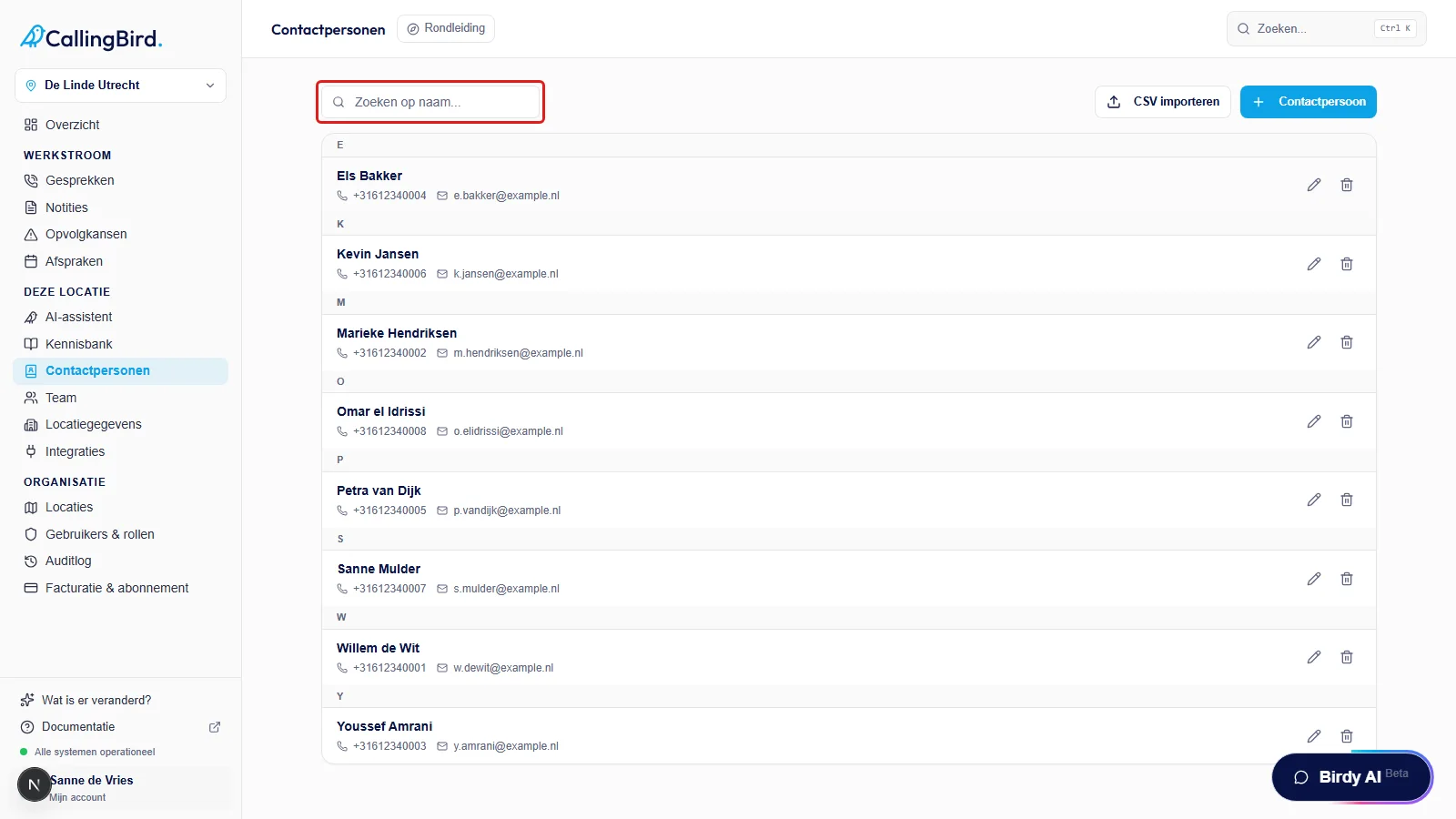
Search for a contact by name. - 2Add a contact
Click Contact and enter the first name, last name, email address and phone number(s).
- 3Edit or delete a contact
Use the pencil icon to change details, or the bin icon to permanently delete a contact.
- 4Import a CSV file
Click Import CSV, choose your file and match the columns to First name, Last name, Email address and phone number. Go through the steps and click Import.
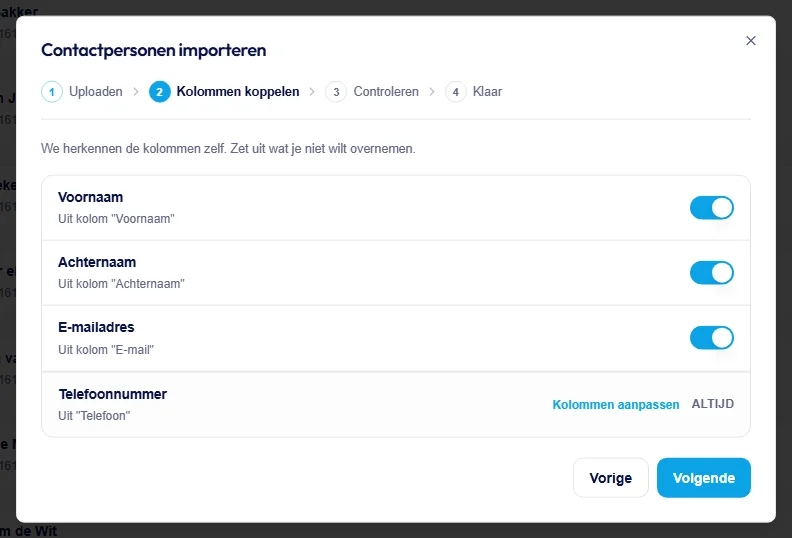
Match the columns from your file to the right fields. - 5Undo an import
If the last import went wrong, click Undo import to remove the contacts you just imported.
Good to know
- Which details the assistant uses during a call is configured under AI assistant > Contacts.