
What do you need?
For this connection you need the URL of your WooCommerce store, a Consumer key and a Consumer secret. Only enter an API version if your store uses a version other than wc/v3.
Create API credentials in WooCommerce
- 1Open the REST API settings
In your WooCommerce admin, go to WooCommerce > Settings > Advanced > REST API.
- 2Create a new key
Choose Add key, give the key a recognisable description and choose a user with access to products and orders.
- 3Choose the right permissions
Choose Read when CallingBird should only fetch product and order data, then generate the API key.
- 4Copy both values right away
Copy the Consumer key and Consumer secret immediately. WooCommerce shows the Consumer secret in full only once.
Connect WooCommerce in CallingBird
- 1Open Integrations
Go to Settings > Integrations and click Connect on the WooCommerce card.
- 2Enter the store details
Enter the WooCommerce store URL, Consumer key and Consumer secret. Only enter an API version if your store uses a version other than wc/v3.
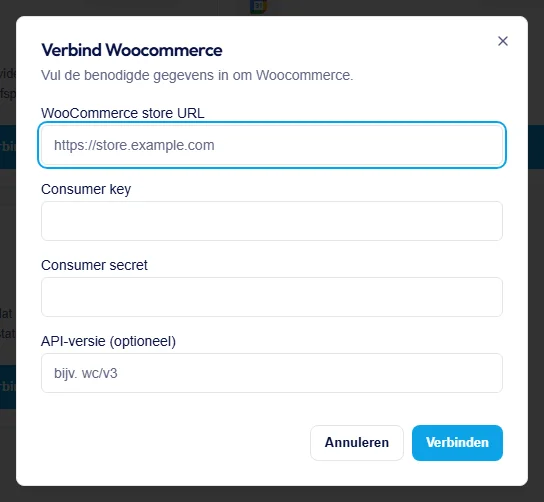
Enter the store details and click Connect. - 3Connect and check the status
Click Connect. If the details are correct, CallingBird saves them and the WooCommerce card shows the Connected status.