What does this connection do?
A connected Google Calendar lets your assistant check availability and schedule appointments in your calendar. You connect through Google's sign-in window, so you don't enter an API key. Only intake questions you configure yourself for an appointment type are written to Google Calendar; a date of birth is not requested or sent by default.
Connect Google Calendar
- 1Open Integrations
Go to Settings > Integrations.
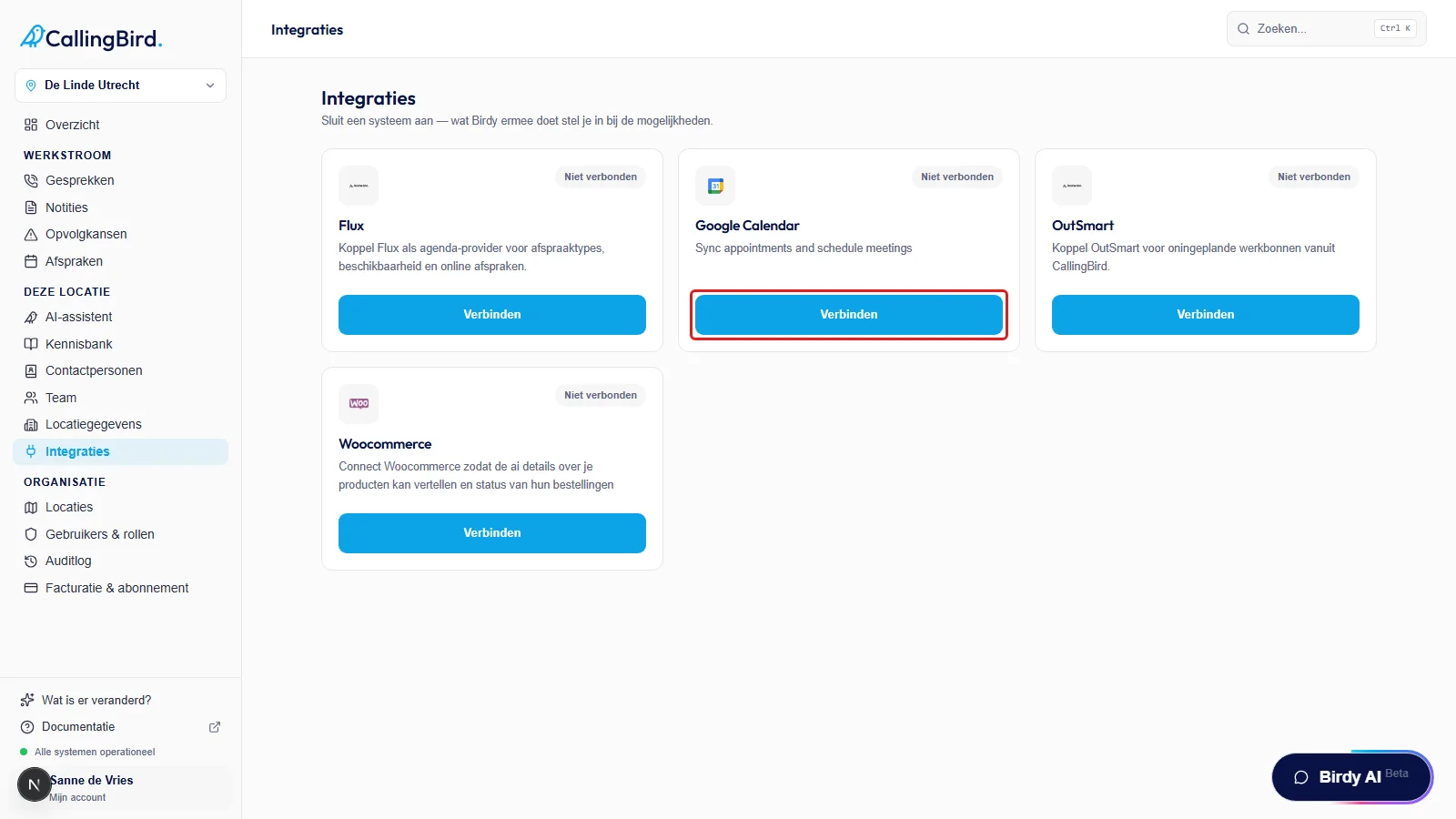
Click Connect on the Google Calendar card. - 2Choose Google Calendar
Click Connect on the Google Calendar card. A secure Google sign-in window opens.
- 3Choose the right Google account
Sign in with the account whose calendar may be used and follow Google's steps.
- 4Grant access and return
Confirm the requested access. You return to CallingBird and the card shows the Connected status.
Enable booking appointments
Then turn on the ability to book appointments under AI assistant > Book appointments. Scheduled appointments then appear under Workflow > Appointments; you manage appointment types and intake questions in that same Book appointments section.