
What is this page for?
Under Settings > Team you manage the departments and employees at this location. The assistant uses these details to transfer calls and, with a connected calendar, to schedule appointments with the right employee.
How it works
- 1Add a department
Click Department, enter a name and optionally a phone number for transfers.
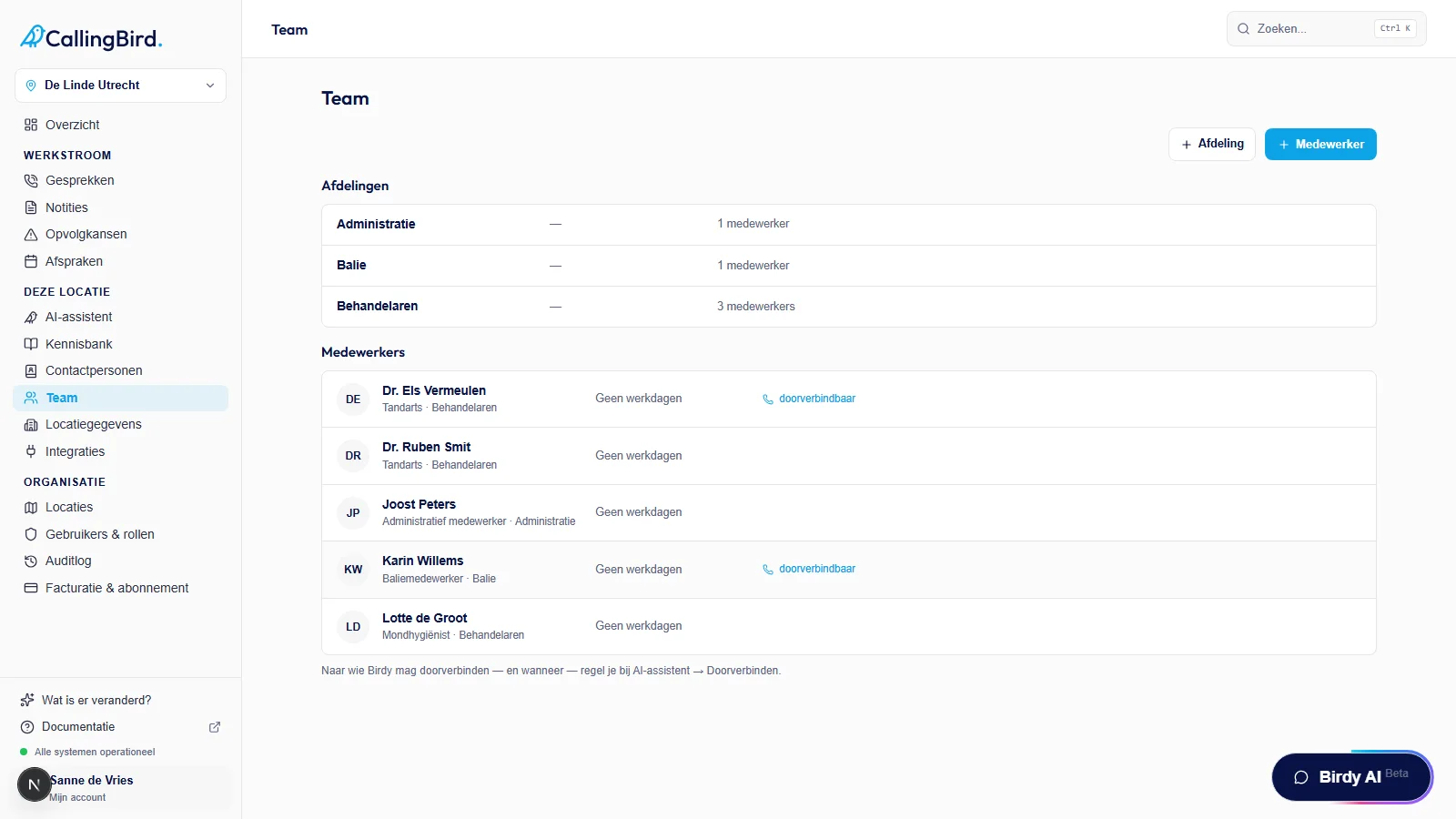
Departments and employees are listed one below the other on this page. - 2Edit or delete a department
Open a department to change the name or phone number, or choose Delete department.
- 3Add an employee
Click Employee and enter a name, role and department. Enter a phone number if the assistant may transfer calls to this employee.
- 4Set availability
Set when the employee is available for each day. If a calendar is connected, select it as well.
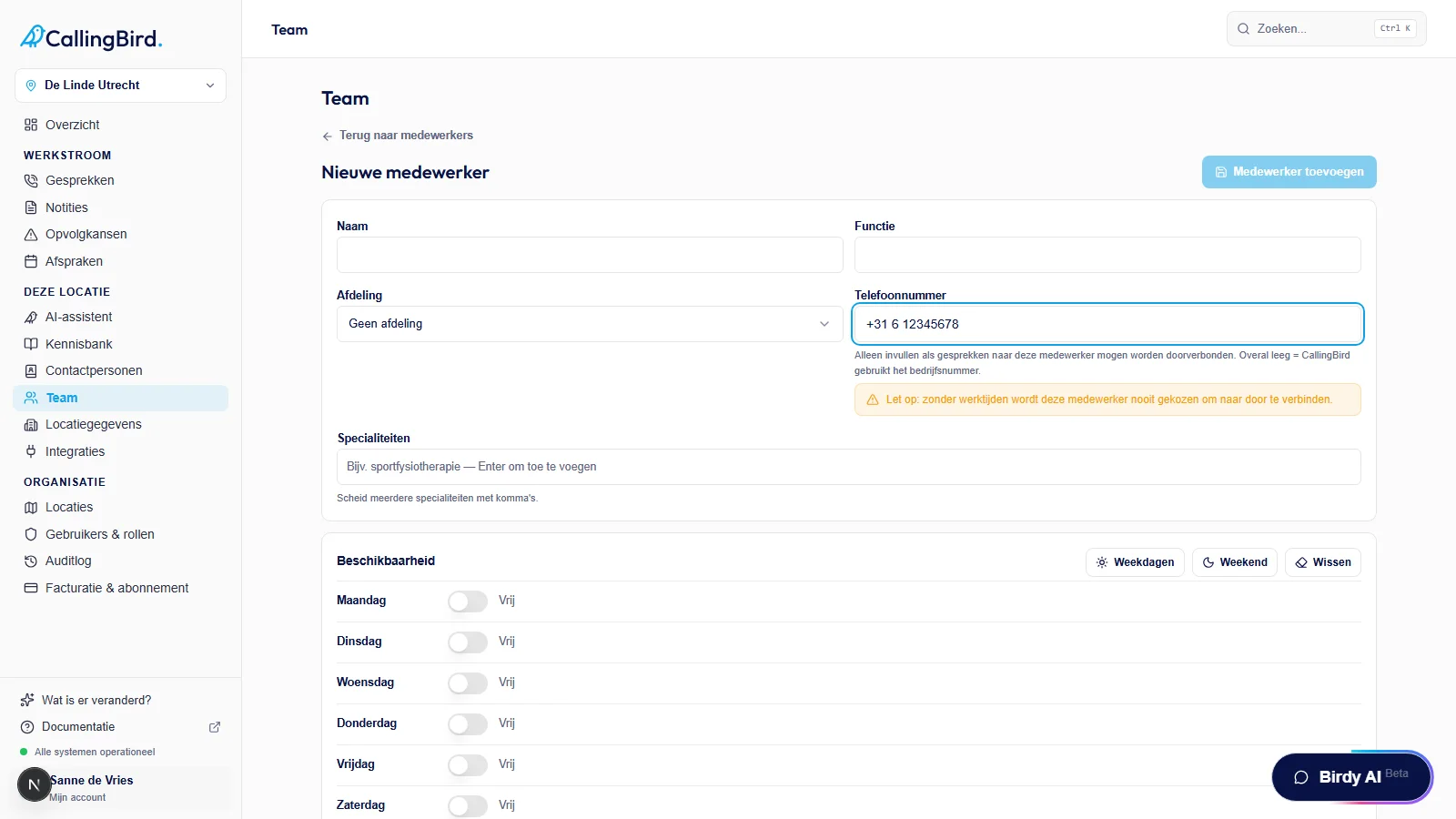
Set when the employee is available for each day. - 5Edit or delete an employee
Open an employee to change details, or choose Delete employee.
Good to know
- With a Flux connection, employees come from Flux and are read-only here; you can still manage departments normally.
- The transfer rules themselves, such as when and to whom, are configured under AI assistant > Transfers.