What is this page for?
Users & roles is only visible to the owner and the organization admin. Under Organization > Users & roles you manage who can access your CallingBird dashboard, with which role and at which locations.
How it works
- 1Open Users & roles
Choose Organization > Users & roles in the menu.
- 2Invite a user
Click Invite user, enter an email address and name, and choose a role. If you work with several locations, you also choose which locations the role applies to.
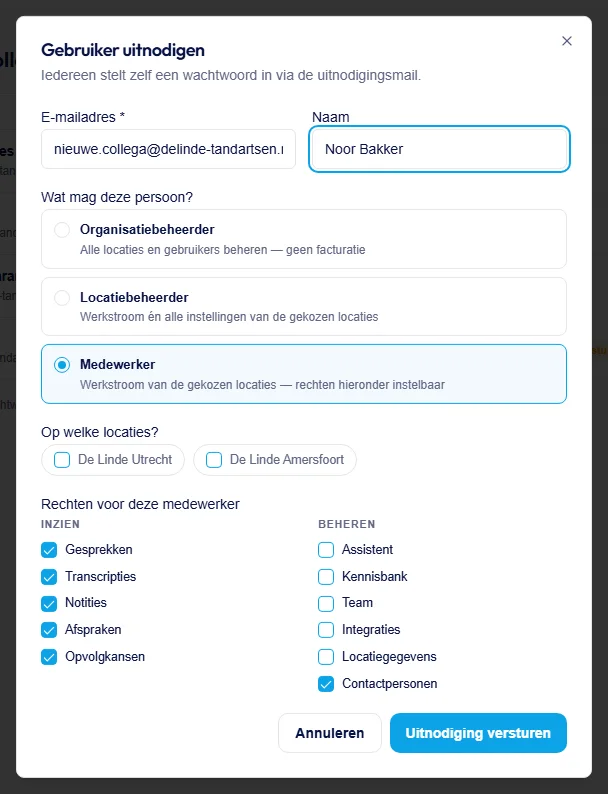
Choose the role first; for Employee you then set the permissions. - 3Change role or access
Click the three-dot button next to a user and choose Change role & permissions.
- 4Manage an invitation
If an invitation hasn't been accepted yet, you can resend it with Resend invitation or withdraw it with Delete.
- 5Block or reactivate a user
Choose Block to temporarily stop someone's access, or Reactivate to allow it again.
The roles
The owner manages the entire organization, including billing, and there is only ever one owner. The organization admin manages all locations and users, but not billing. A location admin manages the workflow and settings of the assigned locations. An employee works within the assigned locations, with permissions you configure yourself.
Good to know
- Everyone sets their own password through the link in the invitation email; you never have to share a password.