
What is this page for?
Locations is only visible to the owner and the organization admin. Under Organization > Locations you see every location in your organization, each with its own phone number and its own assistant. Here you add a new location and close, reopen or delete an existing one.
How it works
- 1Open Locations
Choose Organization > Locations in the menu.
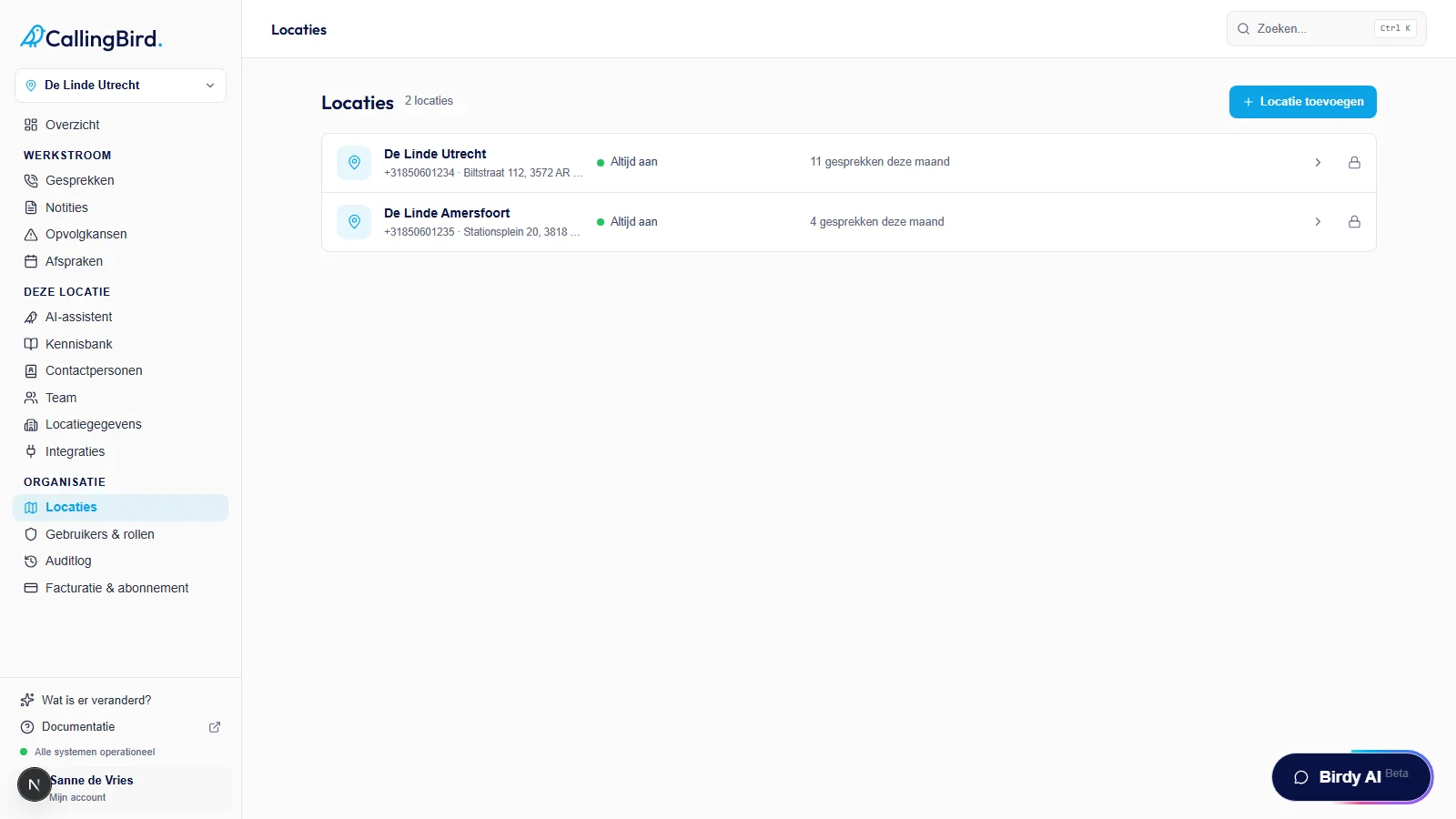
Each row shows the address, number, assistant status and calls this month. - 2Add a location
Click Add location (only the owner can use this button; administrators see it disabled), enter a name, phone number and address, and choose whether to set it up yourself or copy the settings of an existing location. The new location goes live immediately with its own 085 number, for an extra base fee per month.
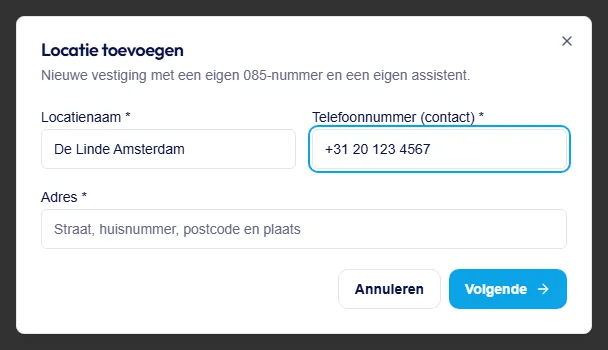
Then choose whether to set up yourself or copy an existing location. - 3Switch location
Click an open location to make it active; you then land straight on that location's overview.
- 4Close or reopen a location
Click the lock icon to close a location, or the open padlock to reopen a closed one. Only the owner can do both.
- 5Delete a location
Only the owner can delete a location, and only one that is already closed and isn't the last one.
Good to know
- Use the location switcher at the top of the menu to quickly switch between locations.
- With a single location, the menu section is called Settings and Management; with several locations it's called This location and Organization.