
What is this page for?
You sign in to the CallingBird dashboard with your email address and password. If you just created an account, you complete the setup wizard once and set up your business and your first assistant in a few steps. If a colleague invited you, you set your own password through the invitation email and skip this wizard.
How it works
- 1Sign in
On the sign-in screen, enter your email address and password and click Sign in. If you've forgotten your password, use the Forgot password? link.
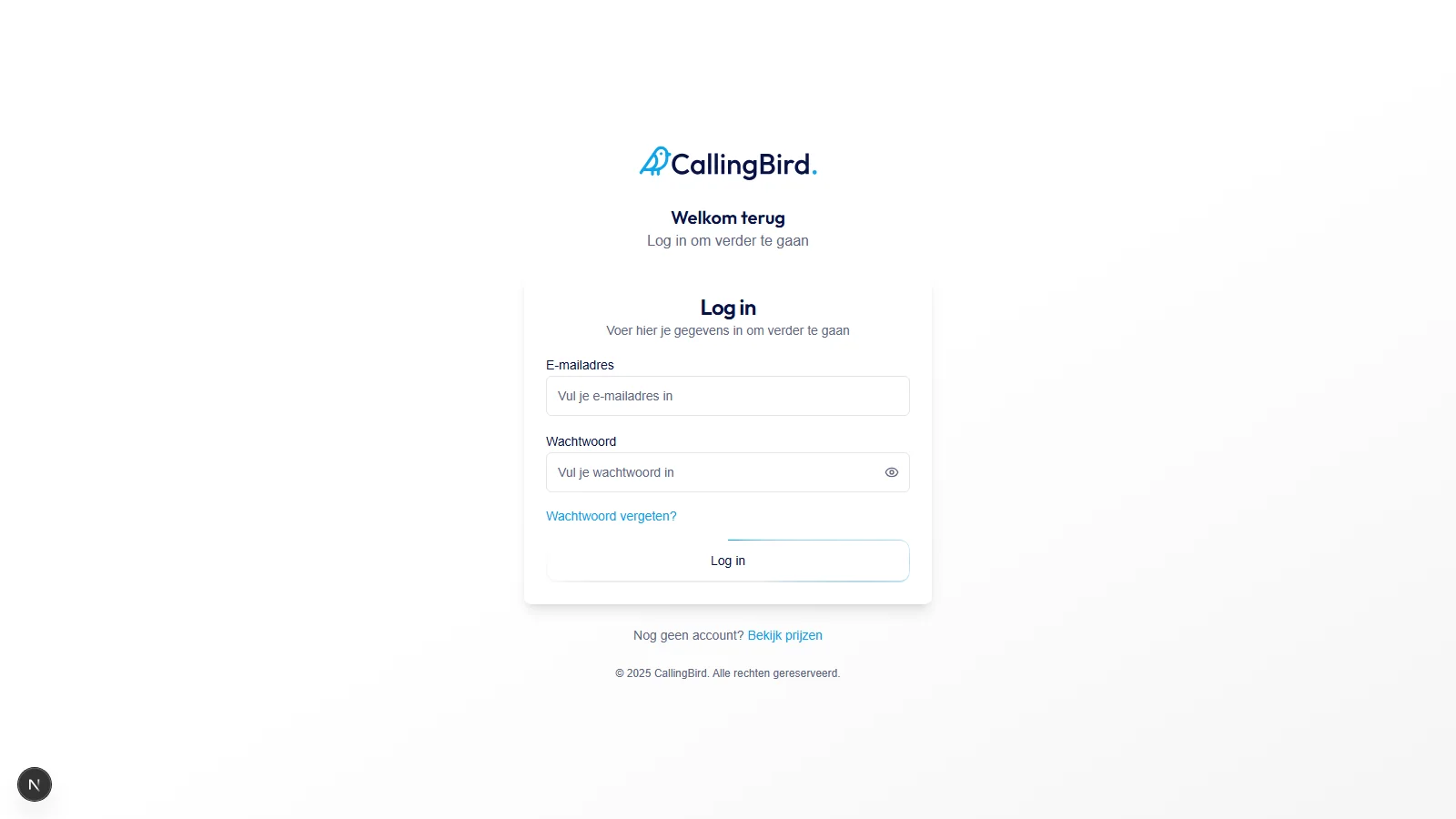
Sign in with the email address your account was created with. - 2Search for your business on Google
The first step, Your business, searches Google as you type. Choose your business to prefill address, phone number and opening hours, or skip the step.
- 3Let us read your website
Under Website import, enter your web address and click Import. CallingBird reads the site and prepares the content as knowledge for your assistant; you can edit the text right away. This step is optional too.
- 4Complete your details
Under Details, check your company name, email address, phone number, address and opening hours. This is the only required step: you can't continue without these details.
- 5Set up your assistant
Under Your assistant, choose the voice, the language and what your assistant is allowed to do, such as answering questions, recording notes or scheduling appointments. This is the same screen you'll find later under AI assistant.
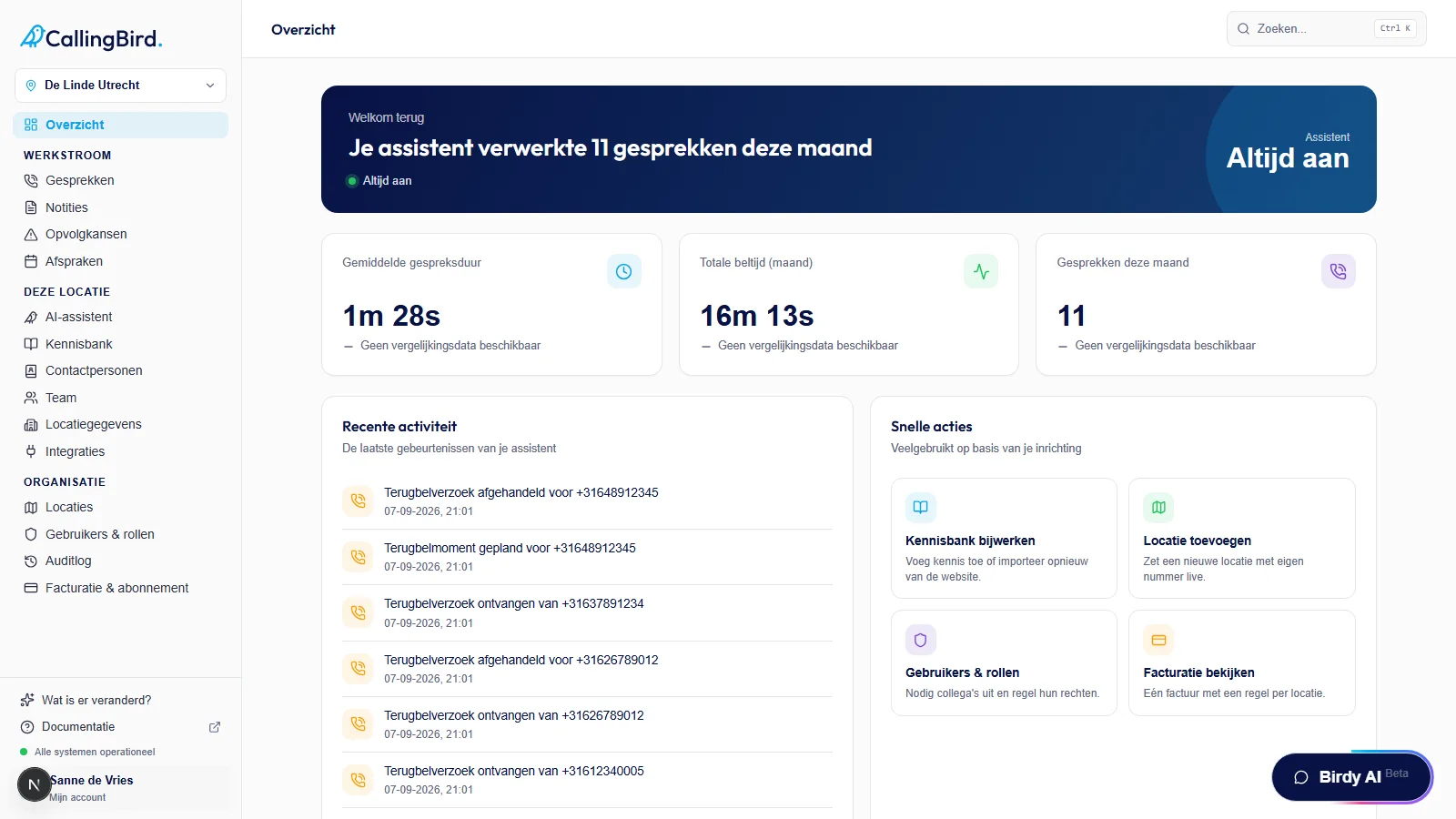
The same settings you'll later find on the AI assistant page. - 6Do a test call
Under Test call, call your assistant right in your browser to hear how it sounds. You can skip this too and always do it later from AI assistant.
Good to know
- If a colleague invited you, open the link in the invitation email and set your own password there.
- After creating an account, confirm your email address through the verification email first; you can't sign in without confirming.
- Everything you set up in the wizard is saved and can be changed later in your dashboard.