
What is this page for?
Under Settings > Knowledge base you manage the knowledge your assistant uses to help callers, such as prices, procedures or frequently asked questions. You see all knowledge items in a list, with their scope and whether they are on. From here you add knowledge, search for an item, or open it to edit or delete.
How it works
- 1Add knowledge
Click Add knowledge and first choose General knowledge or Step-by-step guide. Then choose in the window how you supply it: Write it yourself, From your website or File. Enter a title and content, and choose which locations the item applies to.
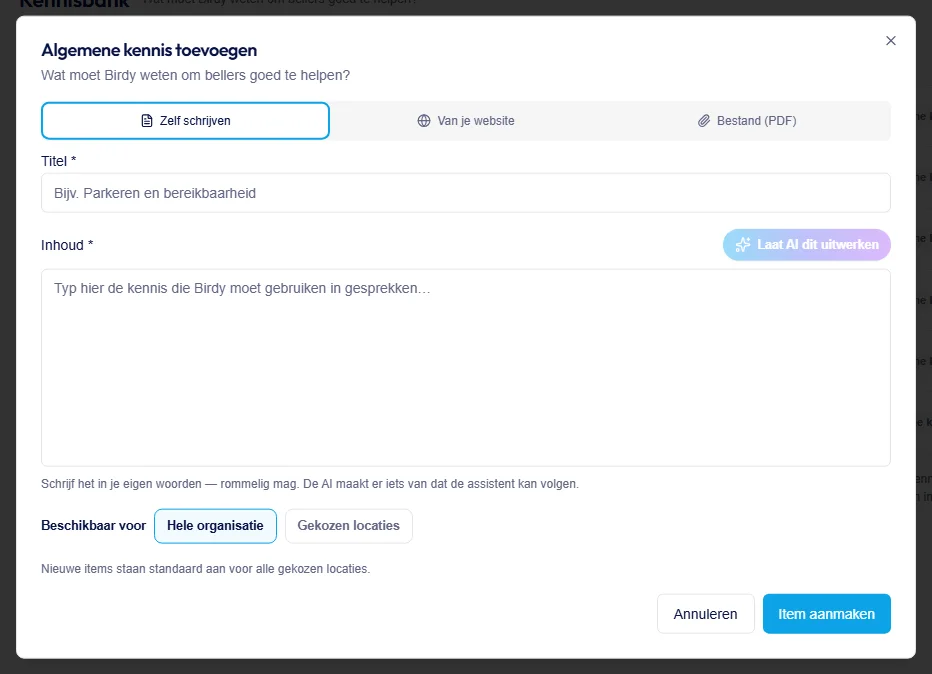
Choose how you supply the knowledge before entering a title and content. - 2Search and filter
Use the search field to search titles and content, or the scope filter to switch between Entire organization and Specific locations.
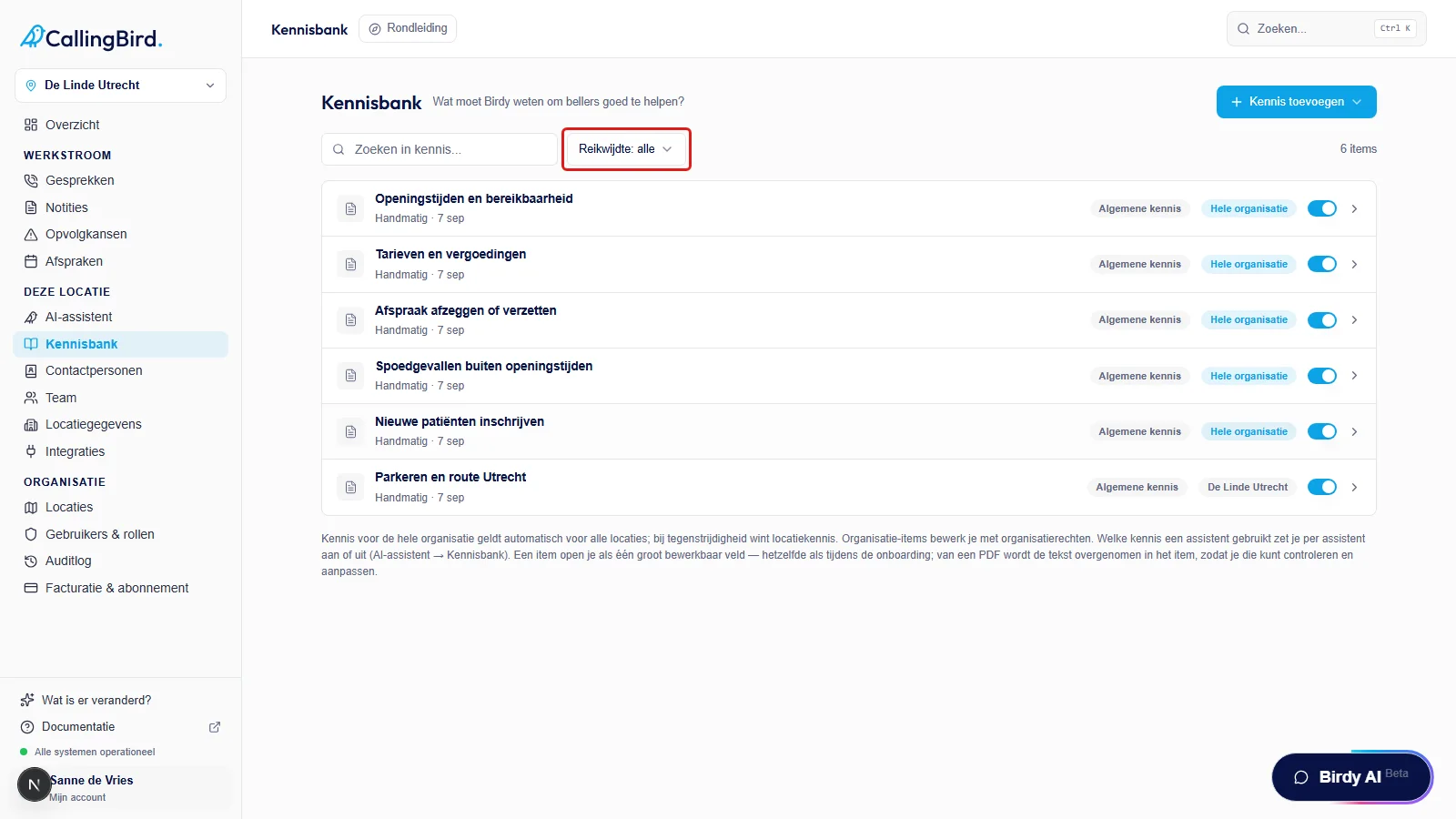
Filter by scope or search by title. - 3Turn an item on or off
Use the switch on an item to take it out of use temporarily without deleting it.
- 4Edit or delete an item
Click a knowledge item to change its title, content or scope. Choose Delete item once the knowledge is no longer accurate.
Good to know
- Which knowledge a specific assistant uses is configured under AI assistant > Knowledge base.
- An import from your website or a PDF ends up here as a regular knowledge item, which you can edit like any other item.
- For a knowledge item from your website, you refresh the content later with Reimport from website.