
What is this page for?
Overview is the first page you see after signing in, and is also reachable via Overview at the top of the menu. At a glance you see how your assistant is doing this month: call duration, call time and number of calls, plus the latest activity and a few quick actions. If you work with several locations, you also see a table per location here.
How it works
- 1Open Overview
Choose Overview at the top of the menu, or land there automatically after signing in.
- 2Check your figures
The three cards at the top show the average call duration, the total call time and the number of calls this month, each compared with last month.
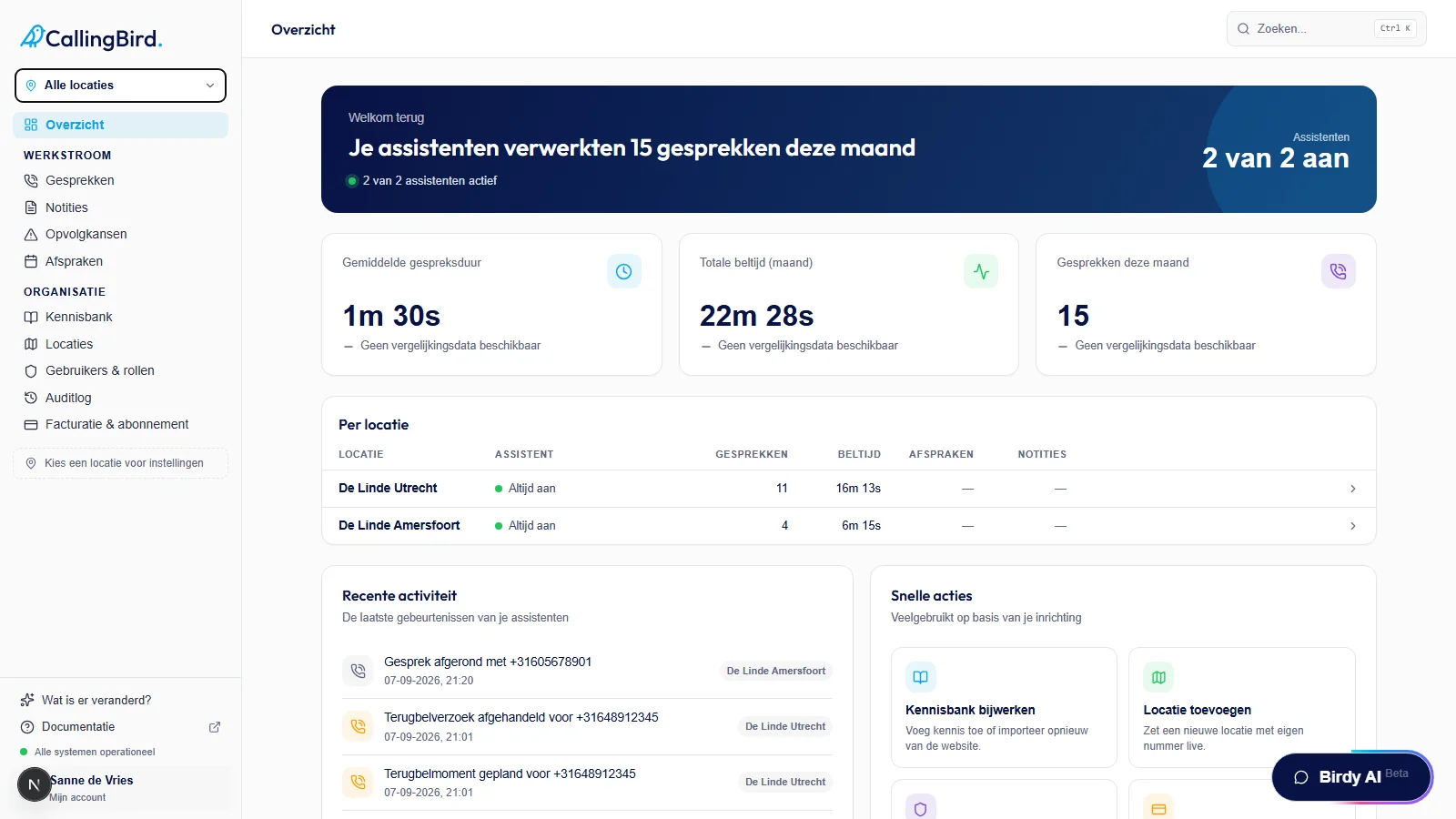
Each card shows the difference with last month. - 3Check your locations
If you're on All locations, you see the Per location table below with calls, call time and the assistant's status per location. Click a row to make that location active.
- 4Check recent activity
Recent activity shows the latest calls, appointments, follow-up opportunities and callback requests together.
- 5Use a quick action
Under Quick actions you jump straight to commonly used pages, such as Update knowledge base or Add location. Which actions you see depends on your role.
Good to know
- Quick actions such as Add location and View billing are only visible to the owner and the organization admin.